

Label text for recognition
A text recognition model learns to find printed text and read it. In this guide you label a care label: you draw a box around each text and type what it says.
What you will learn
- How to mark where a text is
- How to type what it says
- How to correct a box or its text
Before you start
You need a text recognition dataset with images. Text recognition datasets have no tags: every box carries its own text.
1. Open an image
Open the dataset, click «Labeling» and click an image to open it in the editor.
2. Choose the box tool
Choose «Draw Bounding Box» in the toolbar on the left.
3. Draw a box around a text
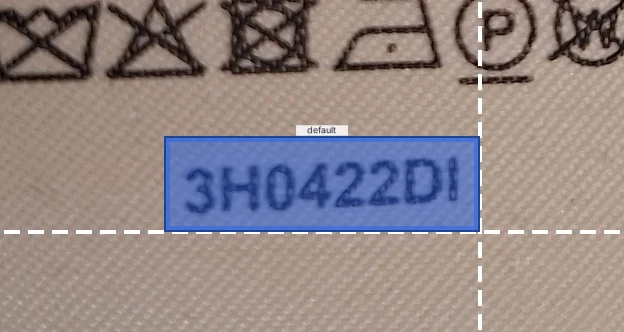
Drag a box around a line of text, as close to the letters as you can without cutting any. One box per line: a box that takes in several lines is harder to read.
4. Type what it says
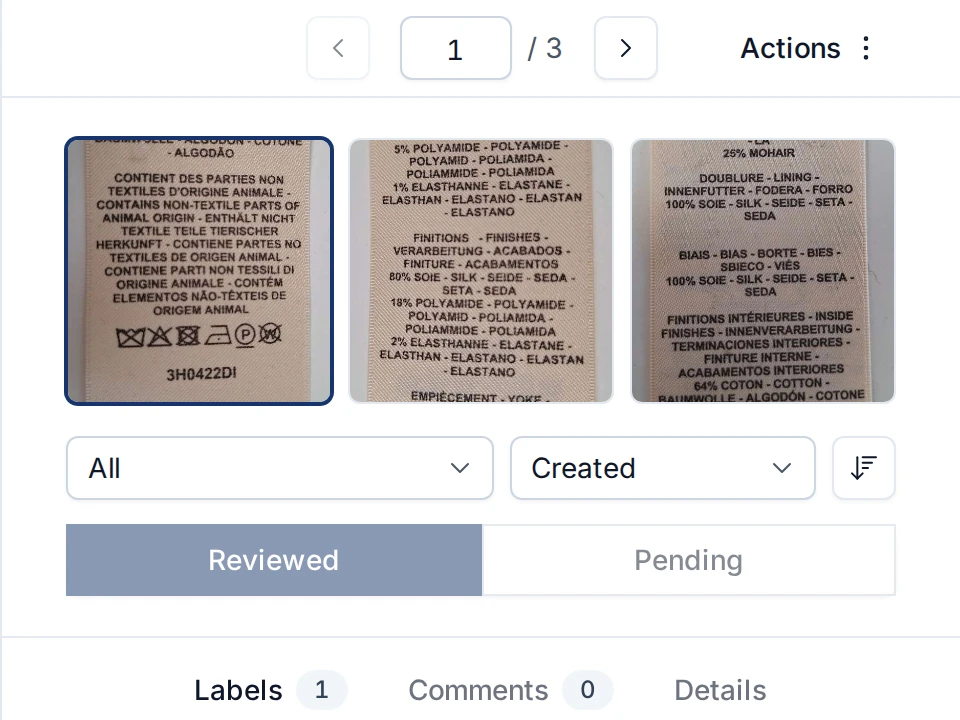
The new box appears in the «Labels» panel with an empty field: type the text exactly as it is printed, with the same capitals, spaces and symbols. That is what the model will learn to answer.
5. Label the other lines
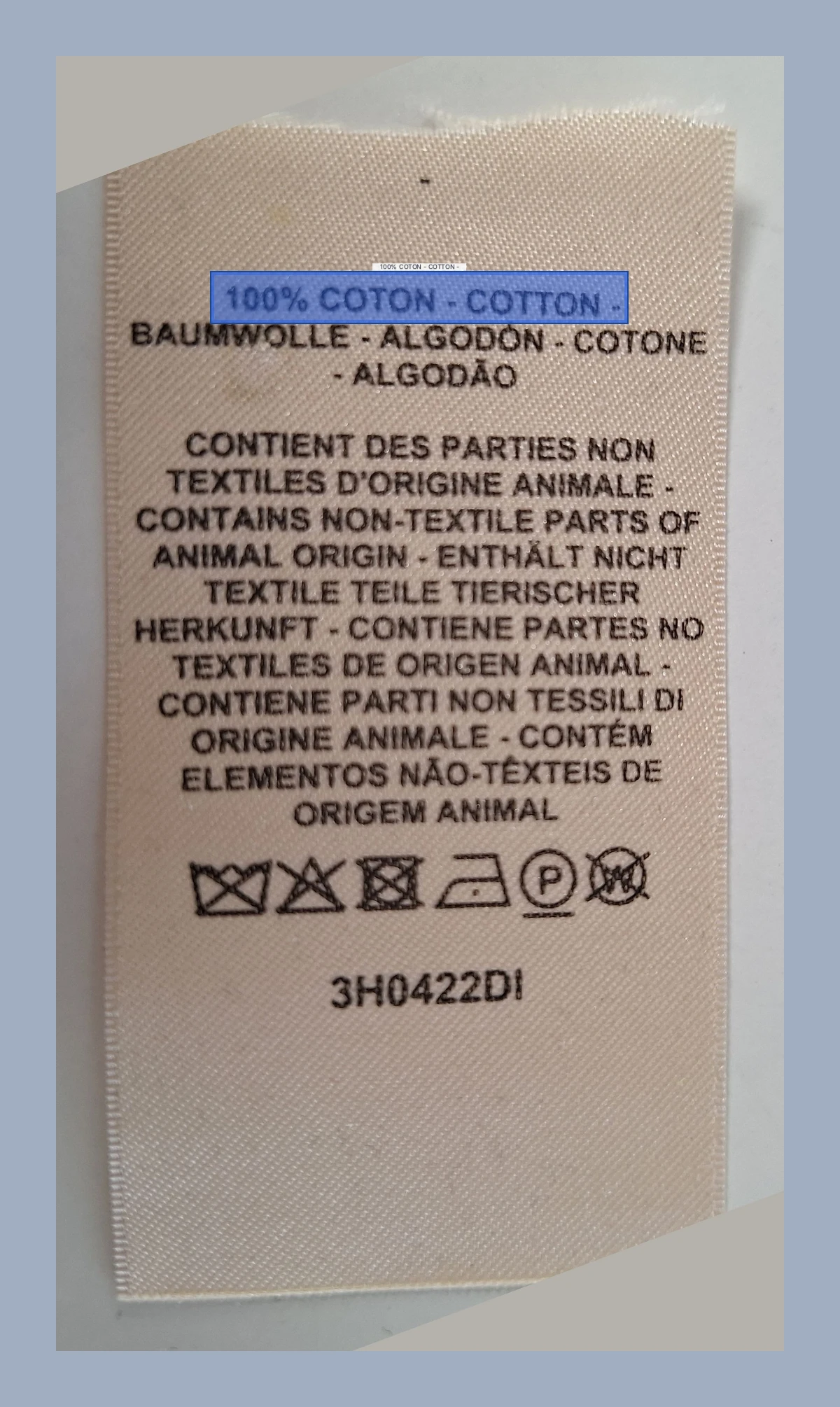
Repeat for every line the model has to read. A new box starts with the text of the previous one, which saves typing on series of similar labels: select it and type over it when it differs. «Move Bounding Box» moves or resizes a box.
6. Check the labels
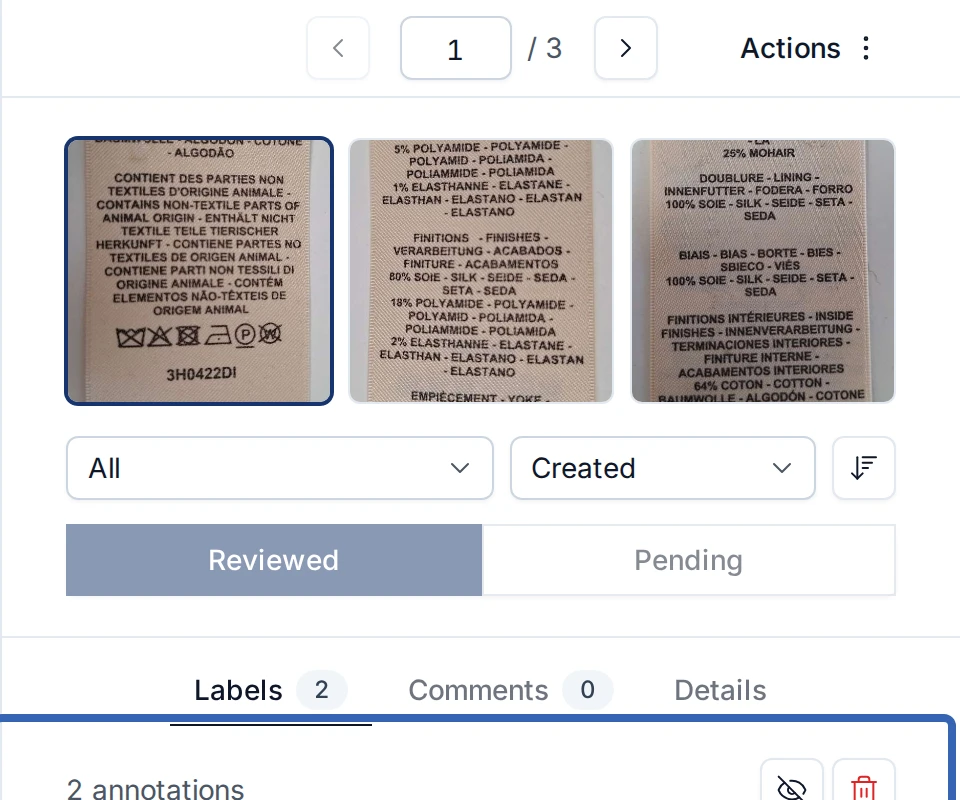
The «Labels» panel lists every box with its text: correct a text there, or delete a box with its bin. An image with boxes counts as reviewed. To read texts without typing them, «Auto Labeling» has OCR models that read the whole image or the box you draw.
Next steps
- Label rotated objects with oriented boxes
- Choose the right dataset type to know when text recognition is the right choice
Recorded on Rosepetal release 1.8.15.